Project-7: 🚀 Deploying a Portfolio App on AWS S3 using GitHub Actions 🚀

Hi, I am Pooja Bhavani, an enthusiastic DevOps Engineer with a focus on deploying production-ready applications, infrastructure automation, cloud-native technologies. With hands-on experience across DevOps Tools and AWS Cloud, I thrive on making infrastructure scalable, secure, and efficient. My journey into DevOps has been fueled by curiosity and a passion for solving real-world challenges through automation, cloud architecture, and seamless deployments. I enjoy working on projects that push boundaries whether it's building resilient systems, optimizing CI/CD pipelines, or exploring emerging technologies like Amazon Q and GenAI. I'm currently diving deeper into platform engineering and GitOps workflows, and I often share practical tutorials, insights, and use cases from my projects and experiences. ✨ Let’s connect, collaborate, and grow together in this ever-evolving DevOps world. Open to opportunities, ideas, and conversations that drive impactful tech!
Detailed guide on how to deploy your Portfolio app on AWS S3 using GitHub Actions. In this step-by-step tutorial, we will cover each concept and explain every single step to ensure a smooth deployment process. But first, let's understand the key concepts of GitHub Actions.
What is GitHub Actions?
GitHub Actions is a powerful continuous integration and continuous deployment (CI/CD) platform provided by GitHub. It enables you to automate your software development workflows, allowing you to build, test, and deploy code directly from your GitHub repositories. With GitHub Actions, you can create custom workflows using YAML-based configuration files, defining the sequence of steps that need to be executed.
Key Benefits of GitHub Actions:
Integrated with GitHub: GitHub Actions is tightly integrated with GitHub repositories, making it seamless to use for developers who already host their code on GitHub.
YAML Configuration: Workflows are defined using simple YAML files, making it easy to understand and version-controlled along with your codebase.
Event-Driven: Workflows can be triggered based on various events, such as code pushes, pull requests, or other custom events in your repository.
Extensibility: A rich ecosystem of community-created actions is available, allowing you to extend the functionality of your workflows.
Scalability: GitHub provides scalable infrastructure to run your workflows, ensuring high availability and performance.
The Deployment Process!
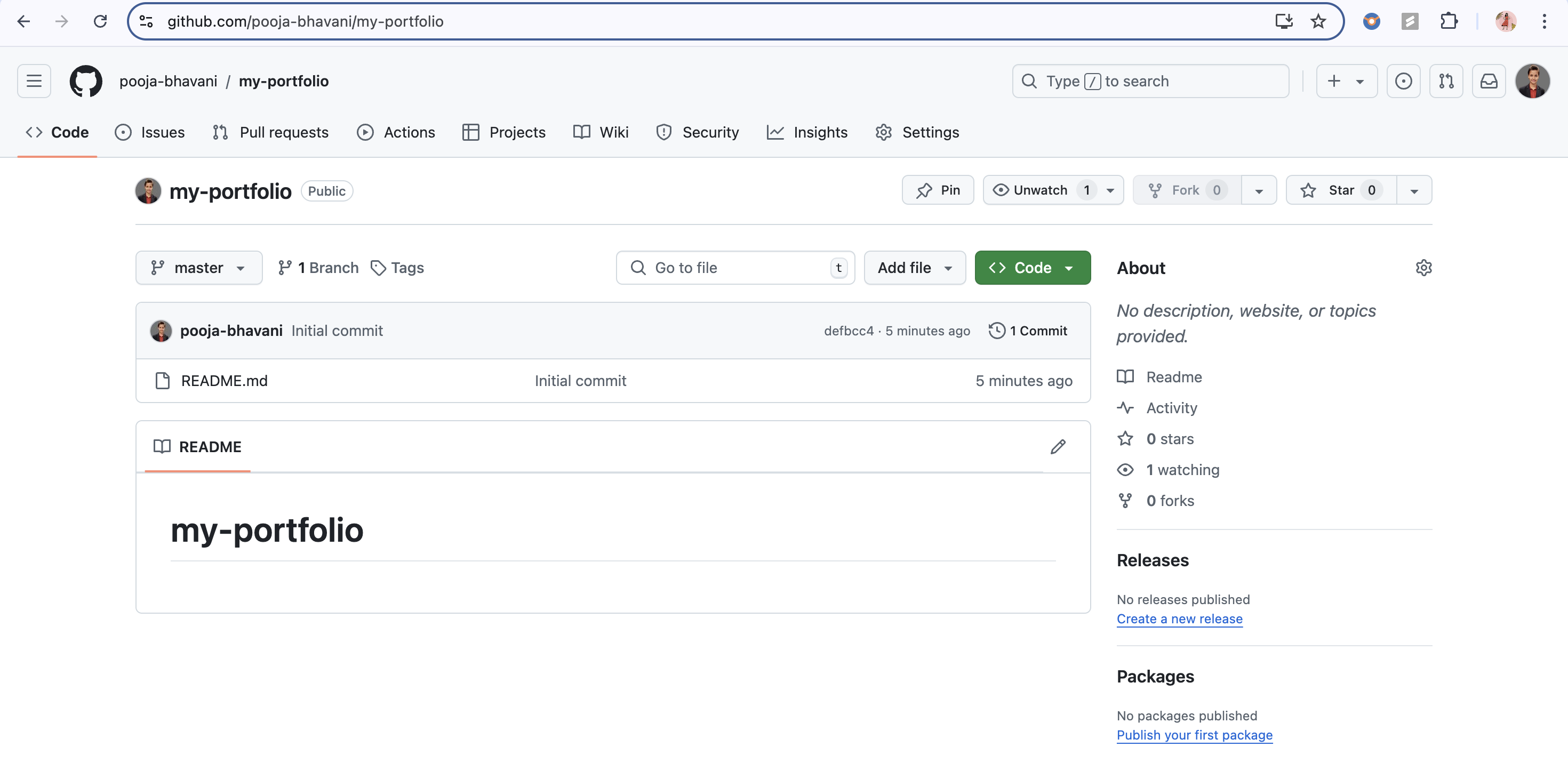
Step 1: Create a New Repository - "my-portfolio" 📁
To start the deployment process, create a new GitHub repository named "my-portfolio" where we will host our Portfolio app.
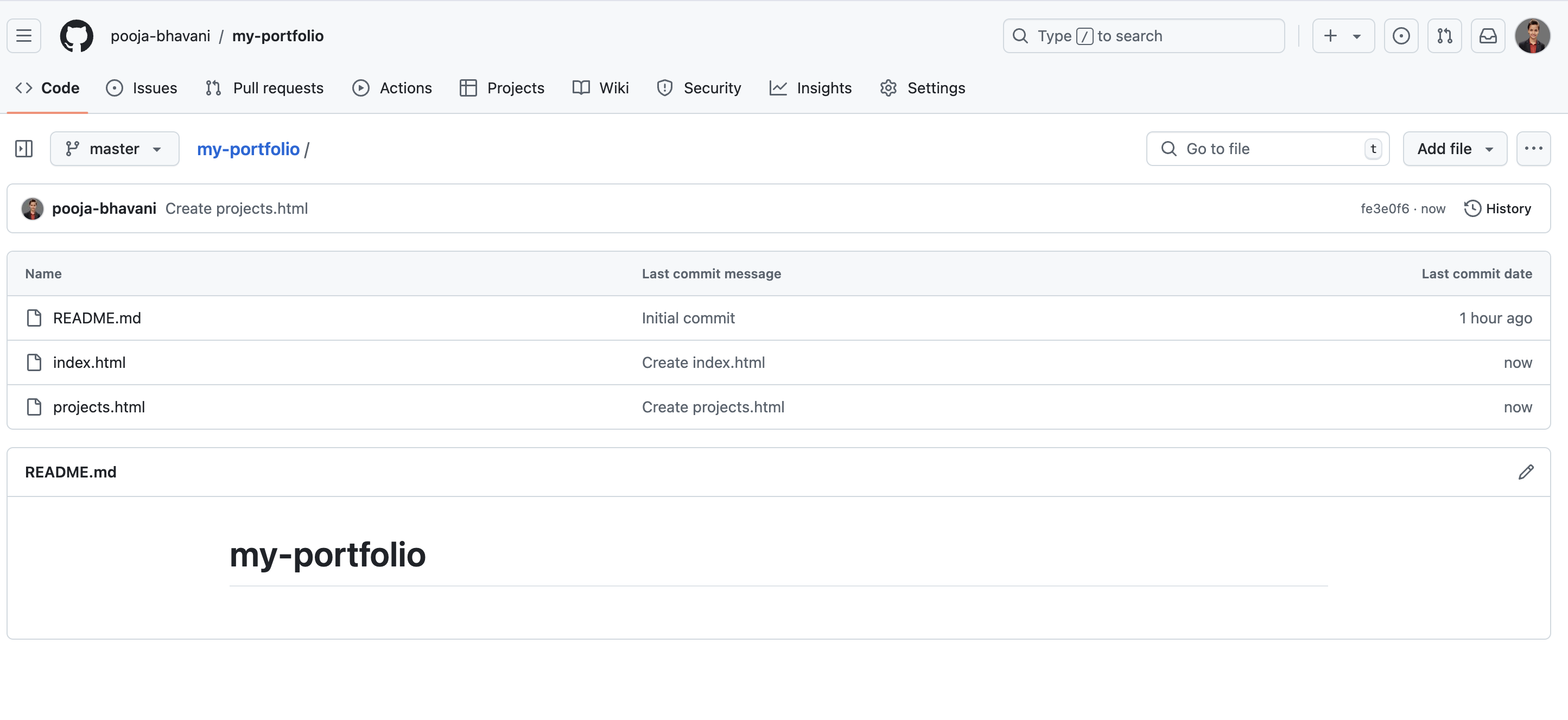
Step 2: Add and Commit Code to GitHub Repository 📝
Once the repository is created, add your Portfolio app's code to it. Use the git commands to commit the code and push it to your GitHub repository or use the github UI.
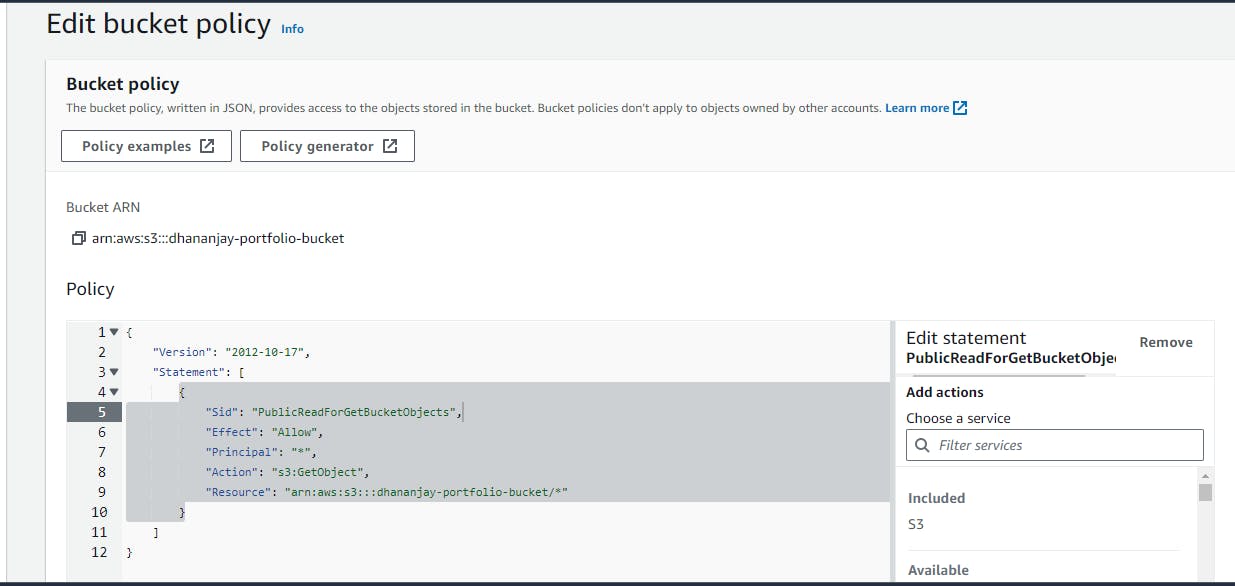
Step 4: Configure Bucket Policy for Public Access 🔒
To allow public access to the objects in your S3 Bucket, you need to set up a bucket policy. Navigate to the bucket's properties, select "Permissions," and click on "Bucket Policy." Add the following policy:
{
    "Version": "2012-10-17",
    "Statement": [
        {
            "Sid": "PublicReadForGetBucketObjects",
            "Effect": "Allow",
            "Principal": "*",
            "Action": "s3:GetObject",
            "Resource": "arn:aws:s3:::<bucket name>/*"
        }
    ]
}
Remember to replace <bucket name> with the actual name of your S3 Bucket.
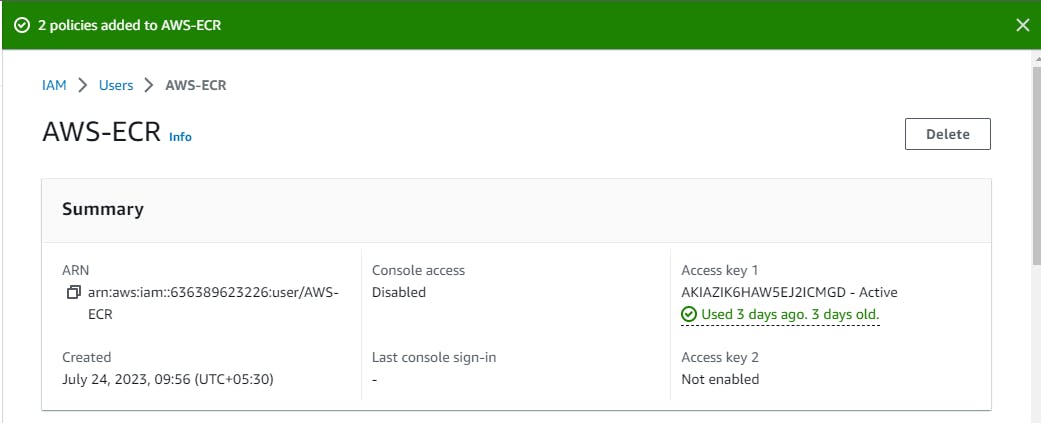
Step 5: Create an IAM User and Generate Security Credentials 🔑
Step 6: Set Up GitHub Secrets for AWS Credentials 🔒
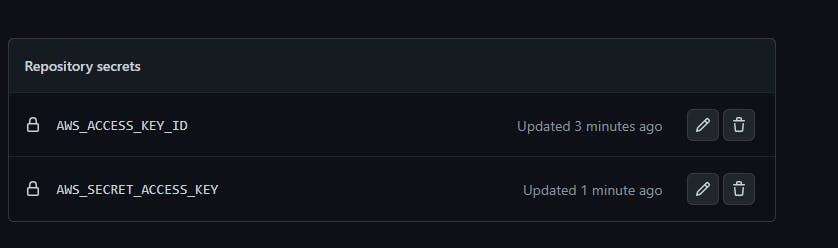
Go to your GitHub repository, click on "Settings," then "Secrets." Here, click on "New Repository Secret" to add your AWS access key and secret key as secrets named AWS_ACCESS_KEY_ID and AWS_SECRET_ACCESS_KEY, respectively.
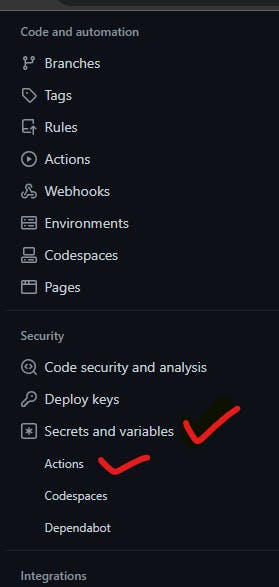
Step 7: Create the GitHub Actions Workflow 🔄
In your GitHub repository, navigate to the "Actions" tab and click on "Set up a workflow yourself."
name: my-portfolio-deployment # Name of the deployment

on:
  push: # Trigger the workflow when changes are pushed
    branches:
      - main

jobs: # Any name can be provided
  build-and-deploy:
    runs-on: ubuntu-latest # Latest version of Ubuntu
    steps:
      - name: Checkout # Check out the repository's code into the workflow's execution environment.
        uses: actions/checkout@v1 # Script actions

      - name: Configure AWS Credentials
        uses: aws-actions/configure-aws-credentials@v1
        with:
          aws-access-key-id: ${{ secrets.AWS_ACCESS_KEY_ID }}
          aws-secret-access-key: ${{ secrets.AWS_SECRET_ACCESS_KEY }}
          aws-region: us-east-1

      - name: Deploy static site to S3 bucket
        run: aws s3 sync . s3://dhananjay-portfolio-bucket --delete # Change bucket name
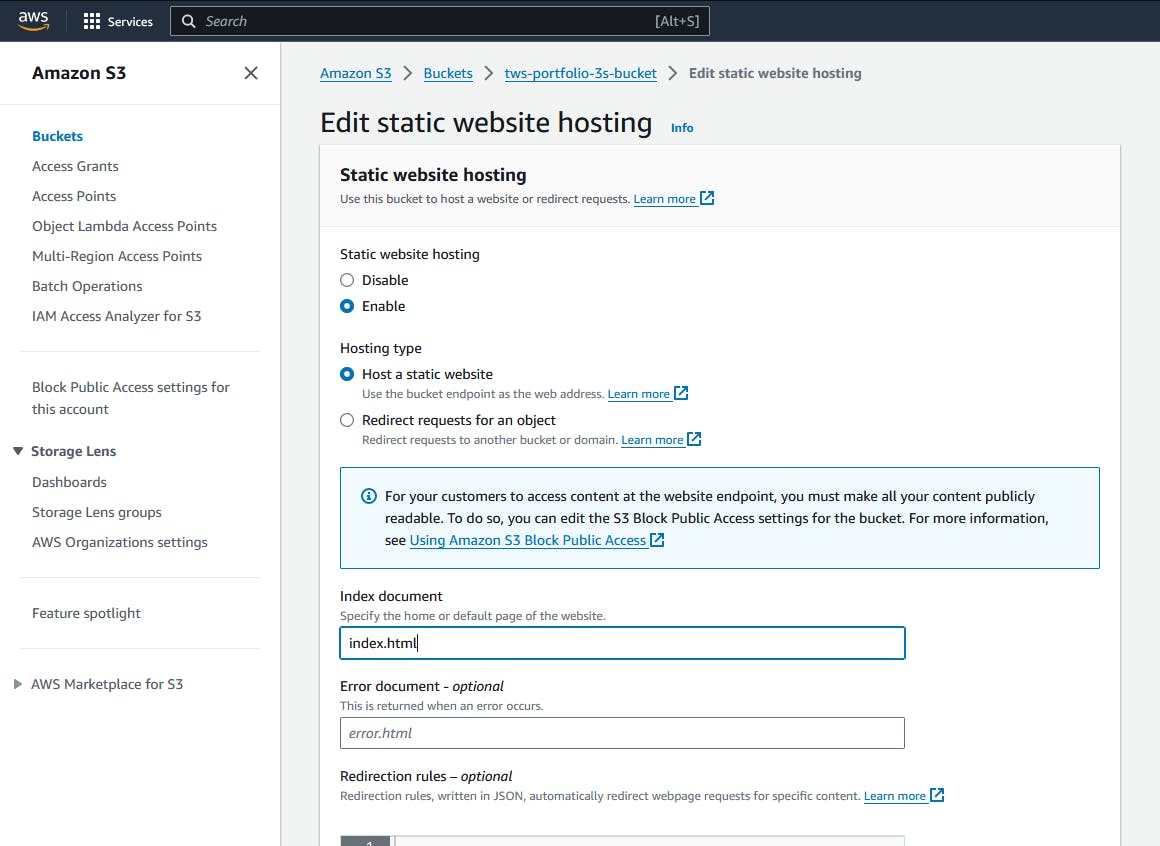
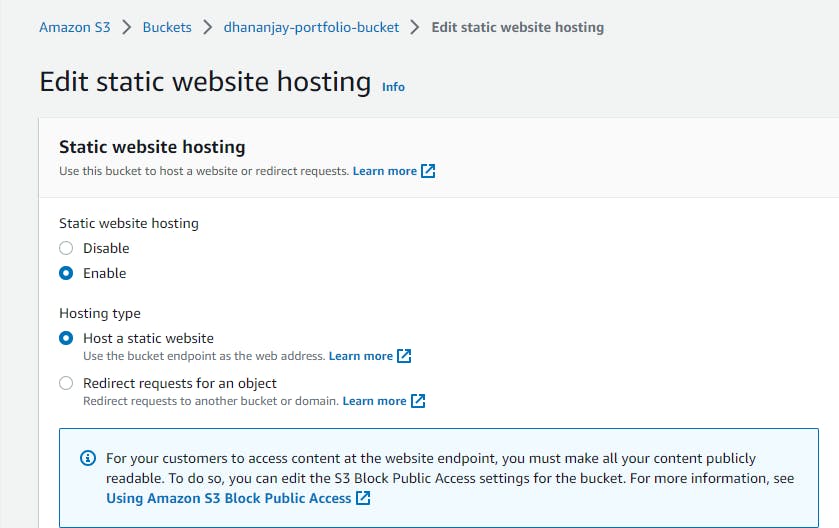
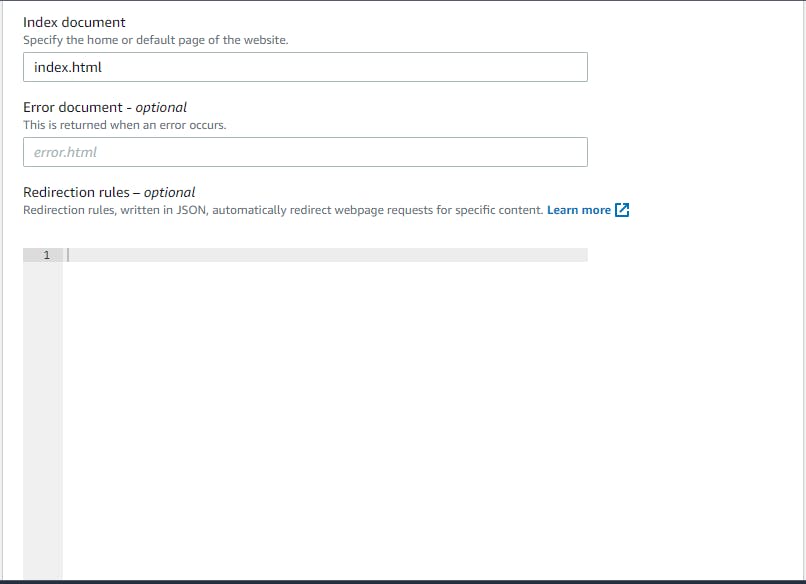
Step 9: Enable Static Website Hosting for the S3 Bucket 🏠
Once the deployment is complete, go to your S3 Bucket's properties, select "Static website hosting," and enable it. Specify the "Index document" as index.html.
Step 10: Access Your Portfolio Website 🌐
Now, visit the URL endpoint provided by S3 Static Website Hosting, and you'll see your deployed Portfolio app live and accessible to the public!